Tables
Place the tap point where a guest naturally reaches before ordering.
Tap Kit setup
Place each tap point, name every service location, invite staff, pin the monitor to iPhone, and keep the live service lane open during the shift.
Put each tap point in the path of ordering intent: tabletops, bar counters, host stands, checkout points, or another guest-facing moment your team already controls.
Place the tap point where a guest naturally reaches before ordering.
Give solo guests and high-turn seats a direct menu entry point.
Let first impressions begin before guests reach the table.
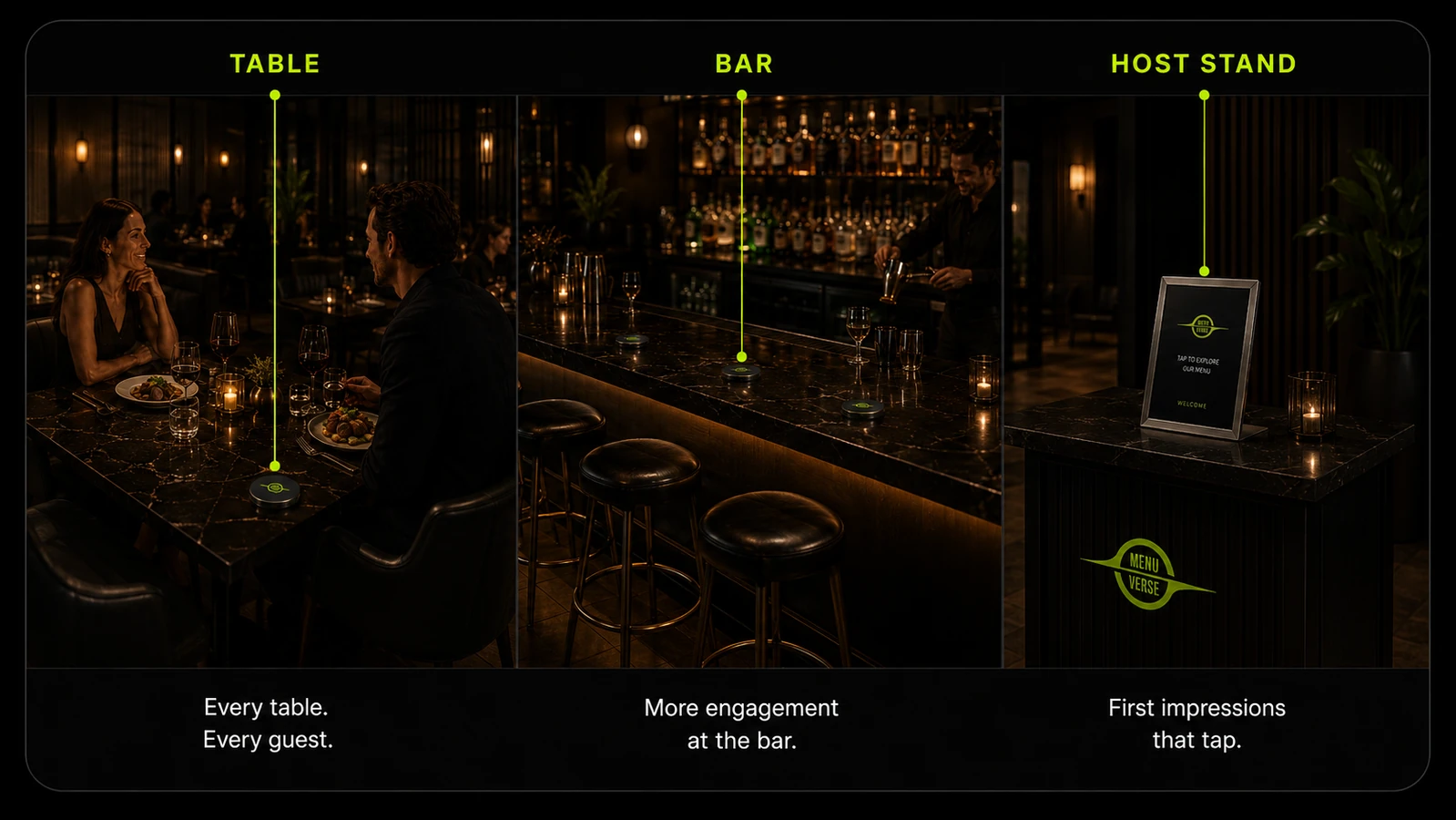
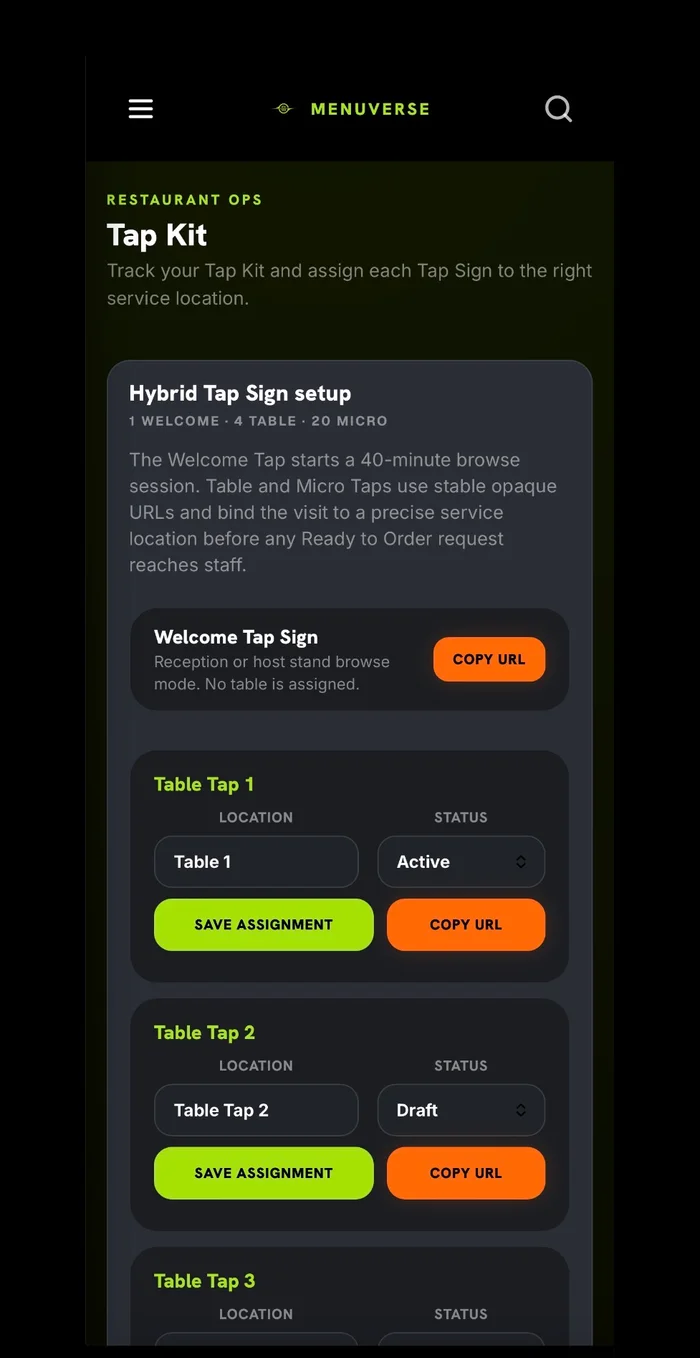
Accurate service-location names tell staff exactly where a Ready-to-Order alert came from. Match each physical tap before inviting the team.
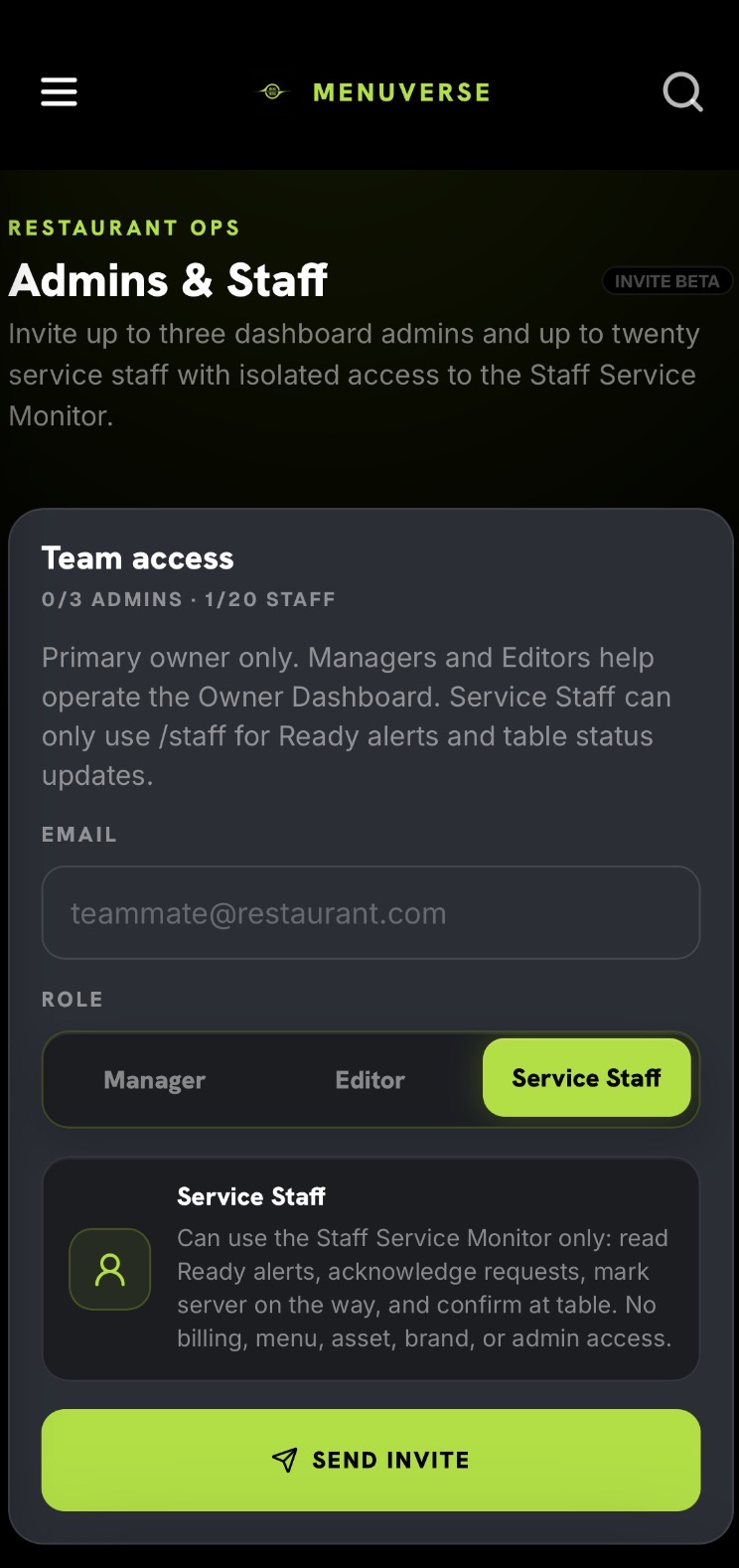
Only an owner should send staff invitations. Managers and Editors help run the Owner Dashboard. Service Staff get isolated access to the Staff Service Monitor.
Invited staff open https://menuverse.live/staff in Safari, sign in, then pin Menuverse to the iPhone home screen. No App Store needed.
Staff Login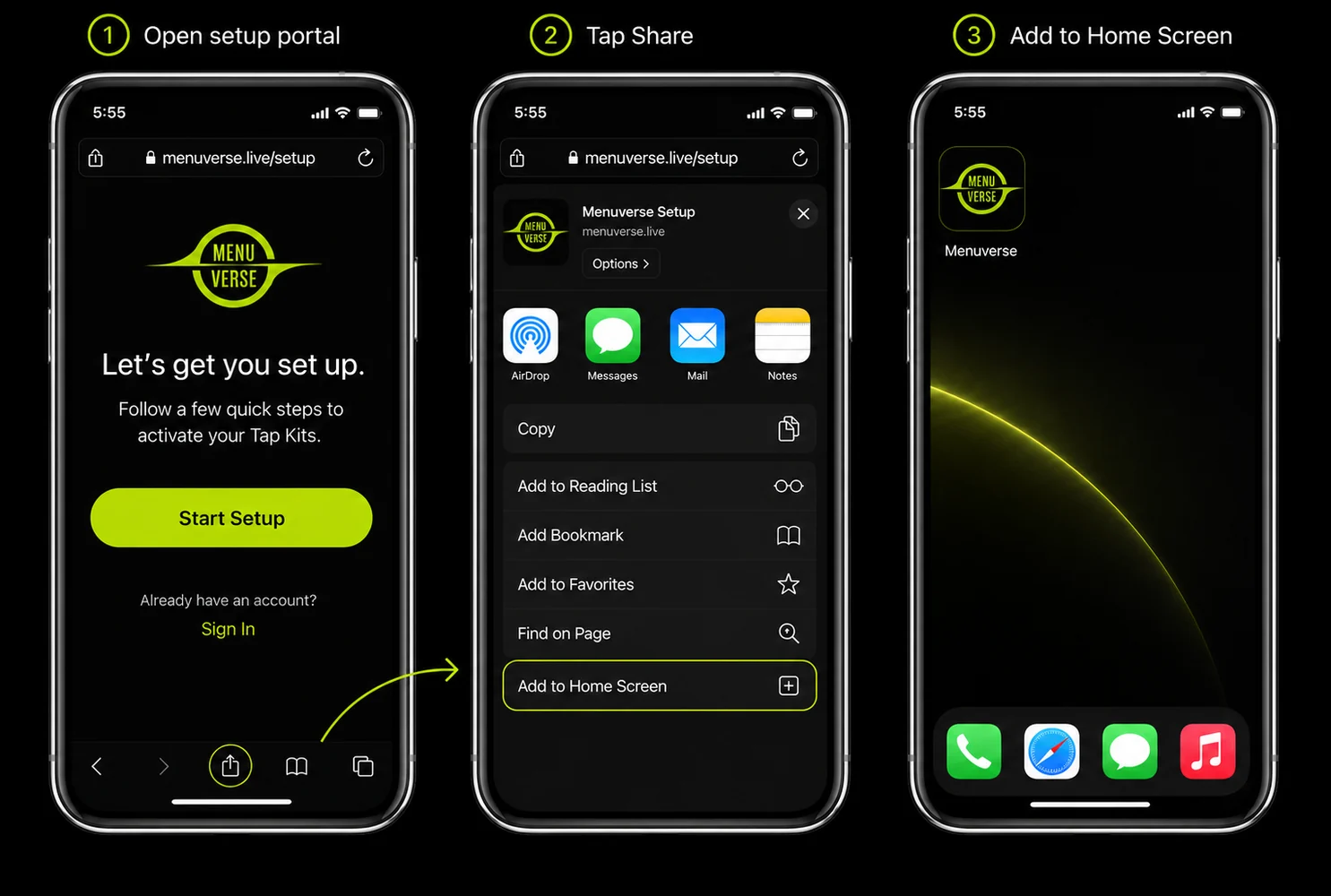
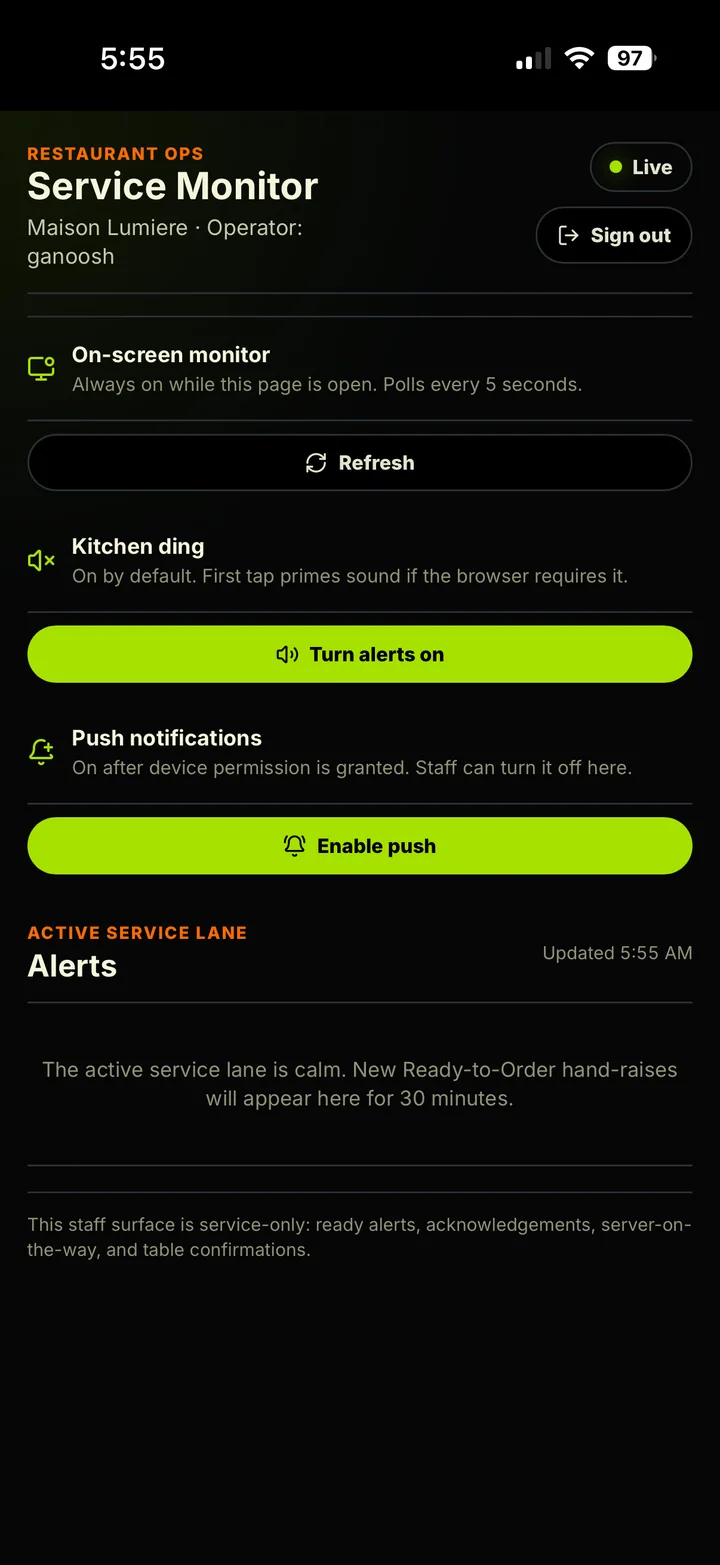
Open the pinned Menuverse icon at the start of each shift. Keep the monitor open for Ready-to-Order hand-raises, acknowledgements, server-on-the-way updates, and table confirmations.
New hand-raises appear in the active service lane.
Staff can turn alerts on after a browser gesture.
Notifications can be enabled when the device asks.
The monitor includes refresh and live status controls.
Ready for service
Complete placement, save tap assignments, invite Service Staff, pin the monitor, and your team can watch the active service lane from the floor.